
Product Grid Generator
Add products to a Shopify blog post without an app - build a grid, copy the HTML, paste it in.
- Free
- No app needed
- No scripts in the code
Products 4
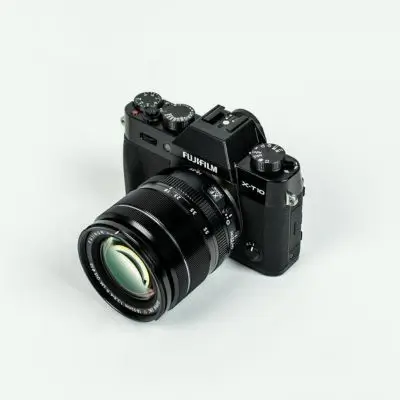 Example product 1$19.99 · /collections/all
 Example product 2$29.99 · /collections/all
 Example product 3$39.99 · /collections/all
 Example product 4$49.99 · /collections/all
Design
In Shopify: open a blog post, switch the editor to HTML with the <> button, and paste the code where the grid should go.
How to
How to add products to a Shopify blog post without an app
- 01
Build the grid
Add your products above - name, image link, product link and price. Pick a grid or carousel and the look you want.
- 02
Copy the code
Press “Copy code”. You get plain HTML and CSS - no scripts, nothing to install, and it works with any theme.
- 03
Paste it into your post
In Shopify, open Online Store → Blog posts, edit the post, click the “Show HTML” button (<>) and paste the code where the products should appear. Save.
Questions
Common questions
Can I add products to a Shopify blog post without an app?
Yes. Build the grid with this tool, copy the HTML, and paste it into the HTML view of the blog post editor. Nothing is installed in your store and there's no monthly fee.
Where do I find the product image link and product link?
Open the product page in your store, right-click the main image and copy the image address. For the product link you can paste the full address or just the path, like /products/ceramic-mug.
Will the product grid slow down my store?
No. The code is a few lines of HTML and CSS with lazy-loaded images - no scripts or apps load with it.
Can I show the products as a carousel?
Yes. Choose “Carousel” in the design options. On phones readers swipe through the products; on desktop the grid shows 2, 3 or 4 columns.
Does it update when I change a price in Shopify?
No - the grid is static HTML, so prices and images stay as you entered them. If a price changes, update it here and paste the new code.
More tools
All tools- QR Code GeneratorCreate a custom QR code for any URL
- Square Image CropperCrop images to squares for digital menus
- Social Image MakerDesign posts and stories in the right size
- Word CounterCount words and characters in any text
- Whitespace RemoverClean up spaces, line breaks and slugs
- Online Checklist MakerKeep track of your tasks
- Bill Split CalculatorSplit bills with friends easily